How to remove backgrounds from videos in CapCut desktop
Two different tools for two different situations, and picking the wrong one wastes an hour.
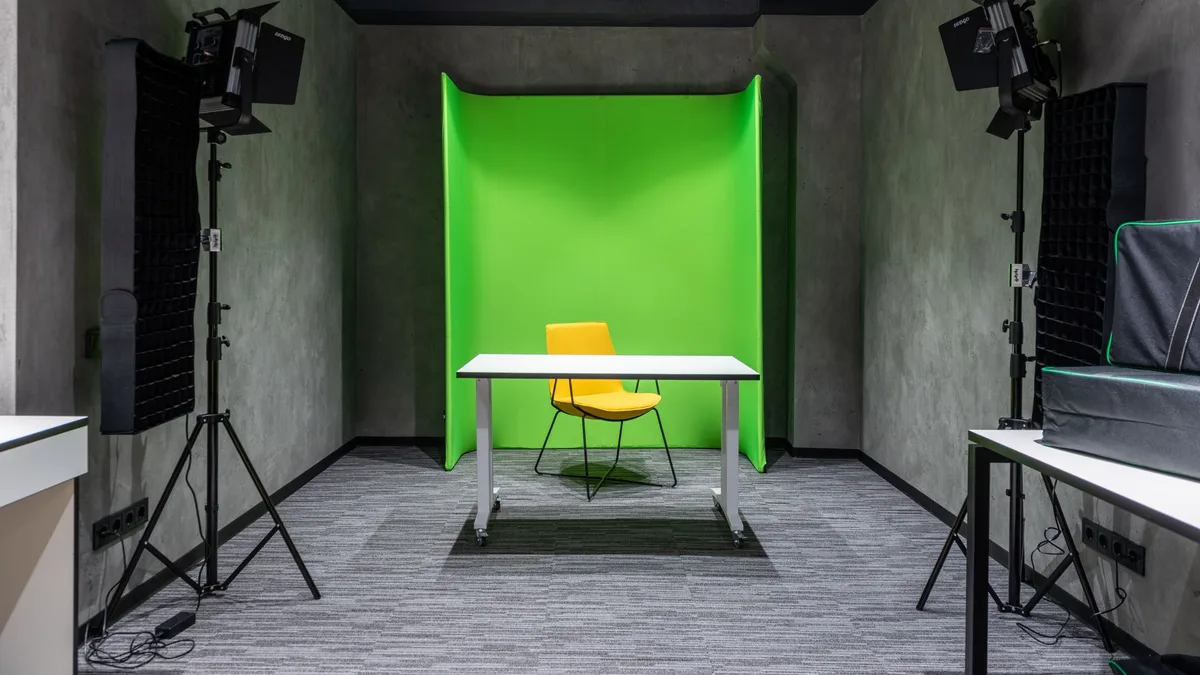
CapCut desktop has more than one way to remove a video background, and they solve different problems. Using AI removal on green screen footage throws away a clean colour separation you could have used.
The controls are few. What causes the most trouble is the export, because CapCut’s pages do not say clearly which format keeps transparency, and sources that claim to know disagree.
What you need to know first
Before the step-by-step, these are the points that decide the outcome. If you are in a hurry, the first one covers most cases.
Chroma key for green screens
You pick the background colour with a picker, then adjust Intensity, Shadow and the edge sliders to clean it up.
Auto removal for normal rooms
AI separates the subject from whatever is behind it, with no special setup. Custom removal adds a smart brush, a smart eraser and a simple eraser for fixing mistakes.
The menu path
Select the clip, then open Video and Remove BG in the right panel. Older guides call this Cutout and Auto cutout, which newer versions label Remove BG.
Test the export early
CapCut says its exports can be MP4 or MOV in HD, 4K or 8K. It does not clearly say which of them carries transparency, so check with a short test.
Chroma key or auto removal
| Chroma key | Auto removal | |
|---|---|---|
| Needs a green screen | Yes | No |
| Controls | Colour picker, Intensity, Shadow, edge sliders | Custom removal brushes for fixes |
| Works on footage not shot on green | No | Yes |
| Where it struggles | Uneven lighting, green spill | Fast movement, loose hair, dim light |
The last row is general experience with these tools, not something CapCut publishes. As a rule of thumb, if the footage was shot on green, try chroma key first. The AI route ignores the clean colour separation that a green screen gives you.
Chroma key, step by step
Step 1: Select the clip and open Remove BG
Drop the clip on the timeline, click it once, and open Video, then Remove BG in the right panel. Choose Chroma key from the options there.
Step 2: Pick the background colour
Use the picker and click the green in the preview. As a suggestion, pick a mid-tone area, not the brightest or darkest patch, because a hotspot can leave the shadowed greens behind.
Step 3: Adjust Intensity
Raise Intensity slowly and stop as soon as the background is gone. Going further can start eating into the subject, usually at the hair and the shoulders first. If it will not clear at a reasonable value, the screen was probably lit unevenly, which no slider fully fixes.
Step 4: Use Shadow and the edge sliders
Nudge Shadow and the edge controls a little to clean the fringe around the subject. Small moves work best. Too much and parts of the subject start to disappear.
Step 5: Refine with Custom removal if needed
If anything is missing or left behind, use Custom removal. CapCut lists a smart brush, a smart eraser and a simple eraser for manual refinement.
Auto removal, for footage without a green screen
Open Video, then Remove BG, and choose Auto removal. CapCut removes the background automatically. If it misses parts or cuts into the subject, switch to Custom removal and use the brush and the erasers. Most of CapCut’s AI tools reportedly need an internet connection, so check yours if it will not run.
Export, and test it first
Before you build a long edit, export five seconds and open the file in whatever you will use next. CapCut’s pages say exports can be MP4 or MOV, but they do not clearly say which one keeps transparency. If your test arrives with a solid background, the transparency was not preserved.
| Where the clip is going | What to do |
|---|---|
| Staying inside CapCut | Keep it in the project and place your new background on a layer below |
| Straight to social media | Put the new background on a layer underneath, then export as normal |
| Into another editor | Check which options your export dialog offers and test a short clip first |
Alpha only matters when something else will supply the background later. If the video is finished inside CapCut, place the new background on a layer underneath and you do not need transparency at all.
Getting better source footage
These are general filming tips, not CapCut documentation, and most cutout quality is decided before you open the app.
- Light the screen separately from the subject. Even lighting on the green makes the key cleaner.
- Keep distance between the subject and the screen. This is the best fix for green spill.
- Avoid green clothing and shiny things. Green clothing can disappear, and glasses or glossy fabric reflect the screen colour.
- Keep the camera steady if you can. A locked-off shot gives AI removal a consistent problem to solve, and a moving shot makes it re-decide edges every frame.
In short
Green screen means chroma key; a normal room means Auto removal; and either way, export a short test before you commit to a long edit.
For stills rather than video, the CapCut mobile cutout guide covers the same remover on product photos. And if you only need one clean image, Canva’s background remover is a shorter route when your plan includes it.
Frequently asked questions
Is background removal free in CapCut desktop?
CapCut’s marketing pages describe the desktop remover as exporting video without a watermark and frame it as free. Another CapCut page lists the background remover among Pro AI tools, and the official Standard versus Pro help page does not mention it. Because the pages disagree, look for a Pro badge on the tool in your own version, and check what happens when you export.
Why does my subject have a green tint after chroma key?
That is usually green spill, light bouncing off the screen onto the subject, often because they stood too close to it. The most reliable fix is on set: put distance between the subject and the screen. In the edit, try the Shadow and edge sliders, and add a colour correction that pulls the green out.
Can I remove a video background without a green screen?
Yes, that is what Auto removal is for. Results depend on the footage: a person sitting still in even light against a plain wall is easier than someone moving quickly in a cluttered, dim room. Better lighting helps an AI cutout more than any slider.
Which export format keeps transparency?
CapCut’s own guides say video exports as MP4 or MOV in HD, 4K or 8K, and do not state that MOV keeps an alpha channel. Some CapCut articles mention formats such as WebM or ProRes with alpha, but they read like general content and do not show the export menu. The only reliable test is to open your export dialog, look at what your version offers, export five seconds and open the file over a coloured background in the app you plan to use.
Keep reading

How to make a product cutout in CapCut on mobile
CapCut has a background remover built into its mobile app. Here are the two routes CapCut describes, how to refine edges and how to check your export.

How to remove a background in Canva (and fix the edges)
Where Canva BG Remover is, which plan it needs, how to repair edges it gets wrong, and the limits on removing backgrounds from a whole folder at once.

Top 5 free Photoshop alternatives for quick image cutouts
Photopea, GIMP, Krita, Paint.NET and Pixlr compared on the one job most people need: cutting a subject out of a photo without a subscription.