15 Canva keyboard shortcuts that save you time
Canva’s shortcut list is long. Fifteen of them are worth the memory.
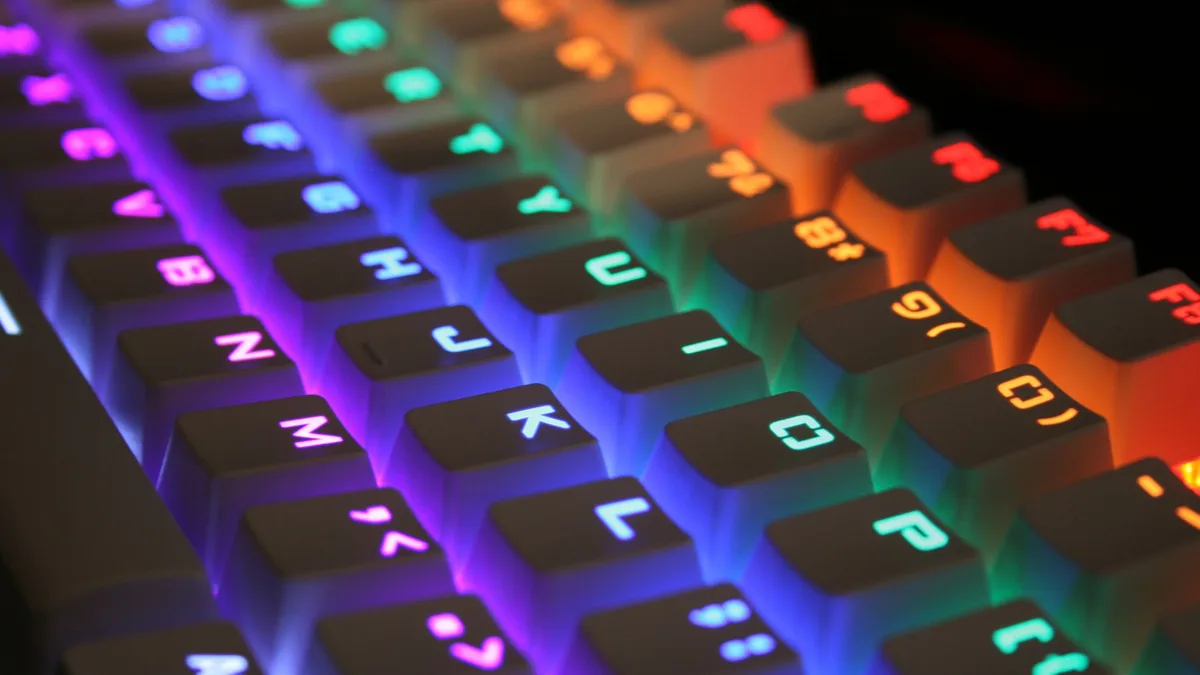
Most shortcut lists online are a transcription of the help page, a long run of key combinations with no sense of which ones matter. That is fine as a reference and poor as something to learn.
These fifteen are grouped by the point in the work where you would reach for them, because that is how shortcuts get memorised. Each one is on the list in Canva’s Help Center, so none of it depends on a trick that might change.
What you need to know first
Before the step-by-step, these are the points that decide the outcome. If you are in a hurry, the first one covers most cases.
Single letters place elements
With nothing selected, T adds a text box, R a rectangle, C a circle and L a line. No sidebar and no searching.
Duplicate and group
Ctrl/Cmd+D duplicates the selected elements. Ctrl/Cmd+G groups them so they move as one, and Ctrl/Cmd+Shift+G ungroups them.
Copy a text style
Alt+Ctrl+C copies the style of selected text and Alt+Ctrl+V pastes it onto other text. It is the shortcut that saves the most time on text-heavy designs.
Slash opens Quick actions
Pressing / opens Canva’s Quick actions search, which Canva says can find elements, templates, and tools such as Background Remover.
The fifteen, grouped by when you need them
| When | Shortcut (Windows) | Mac | What it does |
|---|---|---|---|
| Placing things | T | T | Add a text box |
| Placing things | R | R | Add a rectangle |
| Placing things | C | C | Add a circle |
| Placing things | L | L | Add a line |
| Duplicating | Ctrl + D | Cmd + D | Duplicate selected elements |
| Arranging | Ctrl + G | Cmd + G | Group elements |
| Arranging | Ctrl + Shift + G | Cmd + Shift + G | Ungroup elements |
| Arranging | Ctrl + ] and Ctrl + [ | Cmd + ] and Cmd + [ | Move forward and move backward |
| Arranging | Alt + Shift + T | Option + Shift + T | Arrange elements |
| Text | Ctrl + B / I / U | Cmd + B / I / U | Bold, italic, underline |
| Text | Ctrl + Shift + K | Cmd + Shift + K | Capital letters |
| Text style | Alt + Ctrl + C | Option + Cmd + C | Copy text style |
| Text style | Alt + Ctrl + V | Option + Cmd + V | Paste text style |
| Navigating | / | / | Open Quick actions |
| Navigating | Ctrl + Enter | Cmd + Enter | Add a blank page |
The two text style rows change how you work on text-heavy designs. Format a heading exactly how you want it, copy its style, and paste that style onto the others instead of matching font, size, weight and colour by hand each time.
How to make them stick
Step 1: Take the placement letters first
Spend one design using only T, R, C and L to add elements. They are single keys with no modifier, they are the ones you use most often, and they tend to stick after a few designs. Stay off the sidebar for one project and they become habit.
Step 2: Learn duplicate and group together
Select an element and press Ctrl+D to duplicate it, then select several and press Ctrl+G to group them. Grouping lets you move or resize a set of elements as a single object, and ungrouping with Ctrl+Shift+G gets them back when you need to edit one.
Step 3: Add the text style pair
Format one piece of text the way you want it, press Alt+Ctrl+C, select the next piece of text, and press Alt+Ctrl+V. Canva lists this pair for text style, covering the font style, size, colour and alignment. If you select a shape or an image instead, use the Copy style paint roller on the floating toolbar.
Step 4: Control the layer order
Use Ctrl+] and Ctrl+[ to move a selected element forward or backward one layer. Canva also lists Alt+Ctrl+] to bring an element to the front and Alt+Ctrl+[ to send it to the back. This matters whenever one element ends up hidden behind another.
Step 5: Learn slash last
Press / and type what you want. Quick actions looks for elements, graphics, photos, templates and tools from one box. It is useful, but it only pays off once you roughly know what things are called, which is why it goes last.
Not every shortcut you read about is on Canva’s list. You will see tips online for shortcuts that Canva does not document, such as holding a key while dragging to duplicate. They may work, but they can change without notice. The fifteen above are the ones you can check against Canva’s own list.
The ones not worth learning first
Included so you can stop feeling like you are missing something. All of these are on Canva’s list, and none is wrong. They just matter less in a normal editing session.
| Shortcut | What it does | Why it can wait |
|---|---|---|
| Alt + . | Rotates a little to the right | Dragging the rotation handle is more natural |
| Ctrl + Shift + . | Increases the font size by one | The size box is quicker for big changes |
| Alt + Ctrl + N | Adds a comment | Mostly useful when you share a design |
| Alt + Ctrl + P | Starts presentation mode | Only relevant when you present |
| Ctrl + F | Find and replace in text | Handy in long text designs, rare elsewhere |
Canva’s list is much longer than fifteen, because arrow-key nudges, text alignment and zoom each have their own entries. The working set for a normal design session is far smaller.
What to learn first
Start with T, R, Ctrl+D, Ctrl+G and the text style pair. Those cover most of the clicking in a typical session, and the rest can wait until they feel automatic.
The text style pair pays off most on text-heavy work, so transparent text overlays is a good place to practise it. And if you are resizing rather than designing, batch resizing outside Canva is faster than doing it a page at a time.
Frequently asked questions
Do Canva shortcuts work in the browser as well as the desktop app?
The editor shortcuts on Canva’s list work in the browser. Canva also publishes a separate list for its desktop app, with extra shortcuts for tabs and windows, such as Cmd+T to create a design. Browser-level combinations such as Ctrl+T or Ctrl+W belong to your browser rather than to Canva, which is a reason some people prefer the desktop app.
Why does pressing T not create a text box?
Most likely something is selected, or your cursor is already inside a text box, so the key types a letter instead. Click an empty part of the canvas to deselect, or press Escape, and try again.
Do these shortcuts copy the style of shapes and images too?
The Alt+Ctrl+C and Alt+Ctrl+V pair is listed by Canva for text style. For other elements, Canva points you to the Copy style paint roller icon on the floating toolbar, which carries things like colour, transparency and image filters for elements.
Is there a shortcut to remove a background?
Canva’s shortcut list has no key combination for it. The quickest route is Quick actions: press / or Ctrl+E on Windows (Cmd+E on Mac), type what you are looking for, and Canva suggests tools such as Background Remover. Canva notes that Quick actions is only available when you use Canva on a computer.
Keep reading
How to remove a background in Canva (and fix the edges)
Where Canva BG Remover is, which plan it needs, how to repair edges it gets wrong, and the limits on removing backgrounds from a whole folder at once.
How to create transparent text overlays in Canva
Four ways to put readable text over a photo in Canva: transparency, a scrim, a text shadow and picture-filled letters, and how to choose between them.
How to curve text in Canva for logos and badges
The curve slider, how to get text running along the bottom of a circle the right way up, and the spacing settings that stop curved letters colliding.