Aspect ratios explained: 1:1, 4:5, 16:9 and why crops go wrong
Platforms do not resize your photo to fit. They cut it, and they never ask which part you wanted.
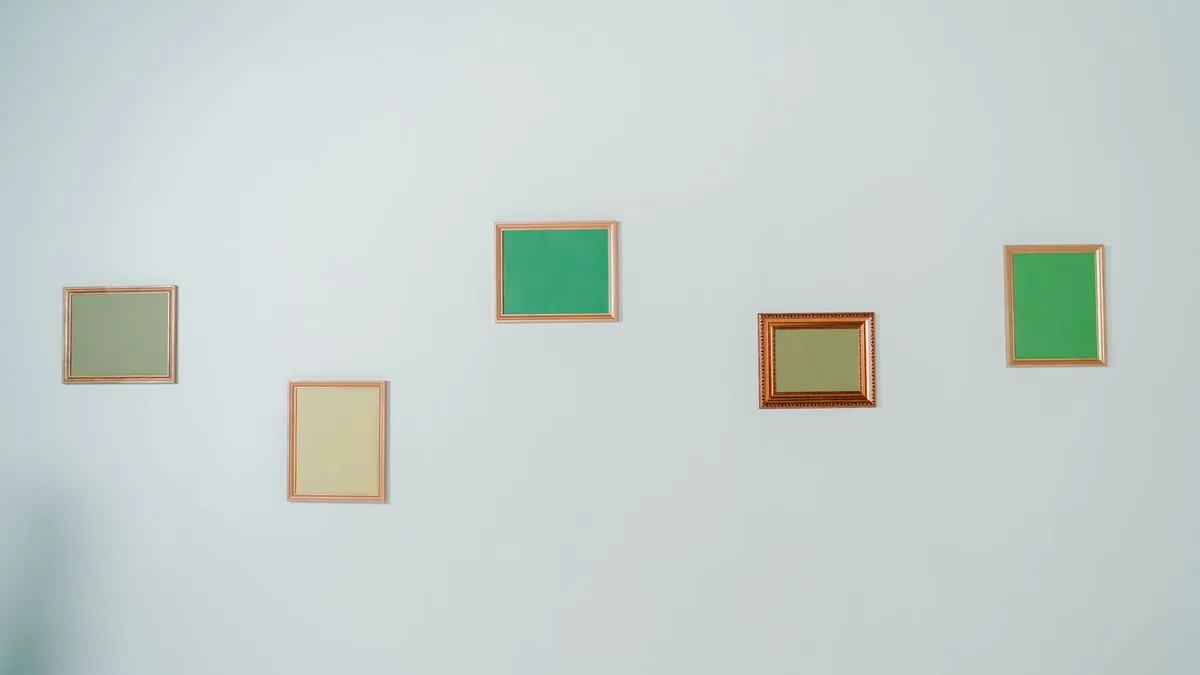
You upload a perfectly composed photo and the platform serves it back with somebody decapitated, the product cut in half, or your carefully placed text sliced off at the edge. Nothing was corrupted. The image simply arrived in the wrong shape.
Aspect ratios are one of the simplest ideas in imaging and one of the most consistently costly to ignore, because the cost arrives after publication rather than before.
What you need to know first
Before the step-by-step, these are the points that decide the outcome. If you are in a hurry, the first one covers most cases.
Ratio is shape, not size
The two numbers describe proportion only. A 4:5 image can be 800 x 1000 or 2000 x 2500. Same shape, very different file.
Mismatched ratios get cropped, not scaled
Platforms fill their slot and trim the overflow. A 16:9 photo in a 1:1 slot loses roughly a third of its width, taken evenly from both sides.
Keep the subject in the middle third
Anything important placed near an edge is what gets cut first. Shoot and crop with a mental safe zone and the same file survives several different slots.
Vertical wins on phones
4:5 occupies about 25% more screen than a square in a feed. It is the single easiest change to make an image more noticeable.
The ratios you will meet
| Ratio | Shape | Common pixel size | Where it is used |
|---|---|---|---|
| 1:1 | Square | 1080 × 1080 | Marketplace listings, profile images, grids |
| 4:5 | Tall portrait | 1080 × 1350 | Instagram feed posts |
| 9:16 | Full-screen vertical | 1080 × 1920 | Reels, Stories and other full-screen vertical video |
| 16:9 | Widescreen | 1920 × 1080 | Video, hero banners, presentations |
| 4:3 | Classic photo | 2048 × 1536 | Default phone and camera capture |
| 3:2 | 35 mm photo | 3000 × 2000 | DSLR cameras, 6 × 4 inch prints |
| 2:1 | Wide banner | 1200 × 600 | Link previews, email headers |
The ratio is a proportion, nothing else. 1080 × 1350 and 1600 × 2000 are both exactly 4:5. If you divide the width by the height and get the same number, it is the same shape, and the shape is what the platform cares about.
Cropping deliberately in four steps
Step 1: Find the destination ratio before you edit
Look up the required shape first, not after the upload fails. Every platform publishes it, and the image size cheat sheet collects the common ones. Ten seconds here prevents a re-crop of forty images later.
Step 2: Set the crop tool to that exact ratio
Use the ratio preset rather than dragging by eye. Every editor (Photos, Preview, Canva, Photoshop, GIMP) has a dropdown with 1:1, 4:5 and 16:9 in it. Dragging freehand gets you close and then the platform trims the difference.
Step 3: Position the frame, do not let it default
Move the crop box so the subject sits where you want it. The default position is the centre, which is right about half the time. Faces belong in the upper third; products belong centred with breathing room; text belongs well inside the edges.
Step 4: Resize after cropping, never before
Crop to shape first, then scale to the pixel dimensions. Doing it the other way means resizing pixels you are about to throw away, and in some tools it also introduces a second resampling pass that softens the result.
Never crop your only copy. Cropping is destructive: the pixels outside the frame are gone, and a 4:5 crop cannot be turned back into a 16:9 original. Export crops as new files with the ratio in the name, such as
product-1x1.jpgandproduct-4x5.jpg, and keep the full-frame master untouched.
Designing one image that survives several crops
If the same photo has to work as a square listing image, a 4:5 post and a 16:9 banner, you can plan for it rather than producing three separate shoots.
- Shoot wide and loose. Extra space around the subject is what gives you room to crop three different ways. A tight frame has no options in it.
- Keep the subject inside the central square. Imagine the largest square that fits inside your frame. Anything important outside it will vanish in the 1:1 version.
- Leave the outer 10% empty. Treat the edges as a margin that any platform is allowed to eat. No text, no faces, no product edges out there.
- Check the vertical crop for headroom. Going from wide to 4:5 usually cuts the sides; going from square to 16:9 cuts the top and bottom, which is where heads live.
- Export the ratios you need, from the master, in one sitting. Three exports from one good original takes two minutes. Discovering the problem after publishing takes a lot longer.
What happens when the ratio does not match
| Original | Displayed in | Platform behaviour | What you lose |
|---|---|---|---|
| 16:9 | 1:1 slot | Centre crop | About a third of the width |
| 4:3 | 9:16 story | Letterbox or heavy crop | Bars, or most of the sides |
| 1:1 | 16:9 banner | Centre crop | Top and bottom |
| 4:5 | 1:1 thumbnail | Centre crop | Top and bottom edges |
| Any | Smaller slot, same ratio | Clean scale down | Nothing |
That last row is the goal. When the ratio matches, the platform only scales, and scaling down is the one operation that costs you nothing.
In short
Match the shape before you upload and no algorithm gets to compose your image for you. Set the crop preset, position the frame yourself, resize afterwards, and export to a new file.
For the resizing half of the job, see resizing without distorting. Stretching to force a new ratio is exactly what that article exists to prevent. When it is a whole folder rather than one photo, batch resizing for free applies the same crop to all of them at once.
Frequently asked questions
What aspect ratio should I use for Instagram?
Use 4:5 at 1080 × 1350 for feed photos. Instagram says photos keep their resolution when the ratio is between 1.91:1 and 4:5, and 4:5 is the tallest. Square 1:1 at 1080 × 1080 is safer if the image will also appear in the grid preview. Reels are 9:16, and Instagram says it accepts reels between 1.91:1 and 9:16. If your ratio is not supported, Instagram crops it to fit, so crop it yourself first.
Does cropping reduce image quality?
It removes pixels but does not damage the ones that remain, so the cropped area looks exactly as it did. The risk is ending up too small: crop a 1200 px wide photo to a narrow vertical and you may be left with 500 px, which is then too little for a full-width display. Start from the largest original you have.
Why does my thumbnail look different from my image?
Thumbnails usually use a different ratio from the main display, often square, and are generated automatically by centre-cropping. If your subject sits off to one side, the thumbnail cuts it out. Composing with the subject near the centre keeps both versions usable.
What is the difference between 4:3 and 16:9?
4:3 is the older, boxier shape that most phone cameras and compact cameras still shoot by default. 16:9 is the widescreen shape used by video, monitors and most website hero areas. Converting between them always means cutting: 4:3 to 16:9 loses height, and 16:9 to 4:3 loses width.
Keep reading
How to resize an image without distorting or blurring it
Why resized images go blurry or squashed, the arithmetic that prevents both, and the free tools that resize a single photo or a whole folder correctly.
How to batch resize hundreds of images for free
Resize, rename and compress a whole folder at once on Windows, macOS or the command line, with no uploads and no paid software.
SVG vs PNG for logos: which one to send and when
Why your logo looks fuzzy at large sizes, what an SVG actually is, and the three files every brand should have ready before anyone asks.