How to convert HEIC to JPG free on any device
HEIC is technically better than JPG and that is precisely why it keeps causing problems.
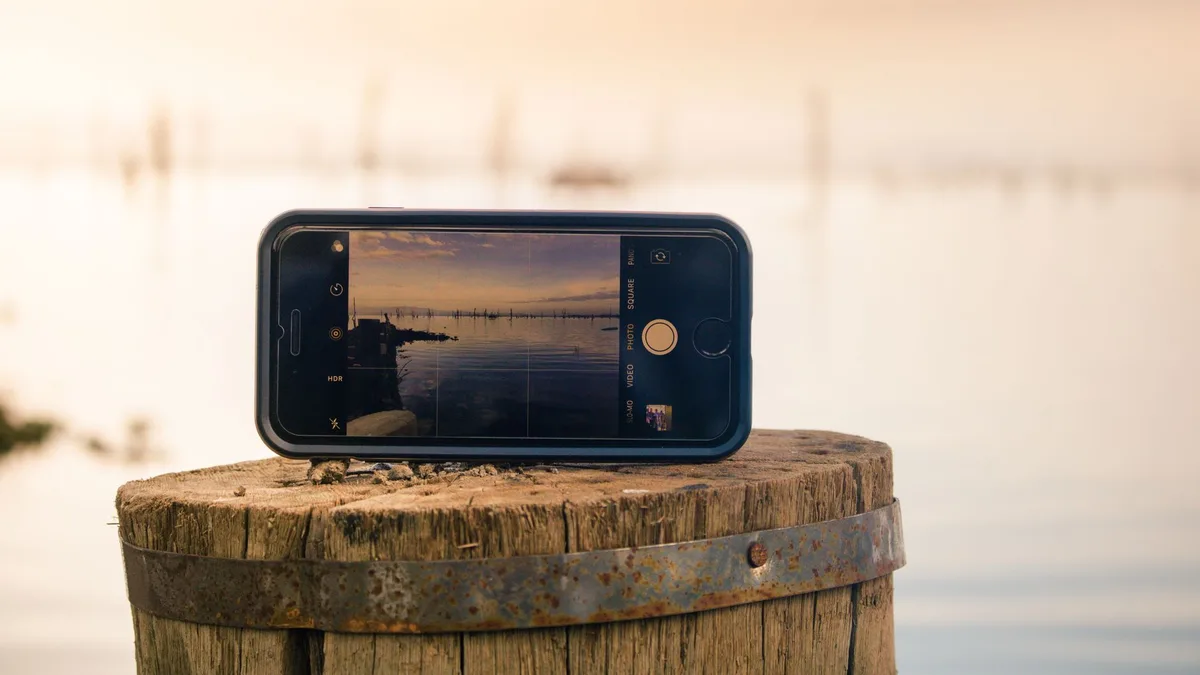
You upload a photo from your iPhone, and the form rejects it. You email it to a colleague and they reply that the file will not open. Nothing is broken. Your phone is simply using a format that half the software in the world has never heard of.
HEIC is the better format. It packs the same picture into roughly half the space. The trouble is that being better is not the same as being accepted, and upload forms are notoriously slow to change.
What you need to know first
Before the step-by-step, these are the points that decide the outcome. If you are in a hurry, the first one covers most cases.
Fix the cause in Settings
On an iPhone, Settings → Camera → Formats → Most Compatible switches new photos to JPG permanently. Files get bigger; compatibility problems disappear.
Sharing often converts automatically
Emailing a photo from an iPhone, or uploading it to most social apps, converts to JPG on the way out. If you only need one file, this is the fastest route of all.
Windows can open HEIC with one free add-on
Microsoft’s support page says HEIC photos on Windows need two Store extensions: HEIF Image Extensions, which is free, and HEVC Video Extensions, which that page lists at $0.99.
macOS converts whole folders in two clicks
Control-click the files, choose Quick Actions, then Convert Image, and pick a format such as JPEG. It needs no extra app and nothing is uploaded.
What HEIC is and why it exists
HEIC files hold images compressed with HEVC, the same family of technology used for video. Apple says HEIF and HEVC compress better than JPEG and H.264, so they use less storage and less iCloud space at the same visual quality.
Apple made it the iPhone default in 2017. Everything since then has been a compatibility story rather than a quality one. The format is better; the ecosystem around it took years to catch up, and plenty of it still has not.
| HEIC | JPG | |
|---|---|---|
| Typical photo size | 1.5 MB | 3 MB |
| Transparency | Yes | No |
| Multiple frames per file | Yes | No |
| Opens on Windows | Only with the extension | Always |
| Accepted by upload forms | Often not | Almost always |
| Supported by old software | Rarely | Universally |
Four free ways to convert
Step 1: Try sharing before converting anything
Email the photo to yourself from your iPhone and choose Actual Size or Large. iOS can convert HEIC to a more compatible format when you share it, but that depends on the app and the destination, so open the file you receive and check its type. For a single photo this takes ten seconds and needs no tools at all.
Step 2: On Windows, install the HEIF extension
Open the Microsoft Store and search for HEIF Image Extensions. It is free. Microsoft’s support page says HEIC photos usually also need the HEVC Video Extensions, which that page lists at $0.99, so check what your version asks for. Once the extensions are installed, Windows can open HEIC files, and you can open one in Paint or Photos and use Save As to write a JPG. If you would rather not pay, set the iPhone to convert photos on transfer, as described below.
Step 3: On macOS, use the Finder
Select the files, Control-click, and choose Quick Actions, then Convert Image. If you do not see it, click More. Apple’s help says you can then choose a format such as JPEG or PNG and a size. For a big batch, try two or three files first to see how the converted copies are named and where they appear.
Step 4: For big batches on Windows, use a converter you install
Download a desktop converter rather than using a website if you have more than a handful of files. Local software processes a folder in seconds, has no upload limits, and keeps private photos on your machine. Point it at an output folder, never at the source.
Do not let a converter delete the originals. Several tools offer a tidy-looking “remove source files after conversion” option. If the conversion goes wrong (wrong quality, wrong folder, interrupted halfway), the originals are gone. Convert first, check the results, delete later if you must.
Stop the problem at the source
If HEIC has caused you trouble once, it will again. Two settings prevent it permanently.
- Change the capture format. On the iPhone, go to Settings → Camera → Formats → Most Compatible. Apple says new photos and videos then use JPEG and H.264 instead of HEIF and HEVC. Photos you already have are untouched, and new ones will use more storage.
- Change how transfers behave. On current iOS, go to Settings → Apps → Photos and scroll to Transfer to Mac or PC. Older iOS versions list Photos directly in Settings. Apple says Automatic lets a computer receive JPEG or H.264 where needed, and Keep Originals keeps the files exactly as captured. Automatic is the better choice if you move photos to Windows often.
The trade is simple: Most Compatible costs storage and removes a recurring annoyance. Automatic transfer keeps the storage saving and converts only when it matters.
Which route to pick
| Situation | Best method | Why |
|---|---|---|
| One photo, right now | Email it to yourself | Converts automatically, no tools |
| A few photos on Windows | HEIF extension + Paint | Free, built in, no upload |
| A few photos on macOS | Finder Quick Actions | Two clicks, no app needed |
| Hundreds of photos | Finder, or a desktop converter | Batch capable, keeps files local |
| Private or sensitive images | Anything offline | Never upload documents to a converter site |
| It keeps happening | Change the camera setting | Fixes the cause instead of the symptom |
After conversion, check the size
A converted JPG is usually larger than the HEIC it came from, because Apple says HEIF compresses better than JPEG. If you converted in order to satisfy an upload form, you may now be over that form’s file size limit. That is a frustrating way to discover the second half of the problem.
Export at quality 80 rather than maximum, and resize to a sensible width while you are there. A 12-megapixel iPhone photo is 4032 pixels wide; almost nothing on the internet needs more than 2000.
What to do now
Change the setting, then deal with the backlog. Most Compatible stops new HEIC files appearing, and the Finder or the Windows extension clears out the ones you already have, all without uploading a single photo to a stranger.
If the converted JPGs come out too heavy for the form you are fighting, reducing an image to an exact size in KB is the next step. For the wider question of which format to use where, see WebP vs PNG vs JPG.
Frequently asked questions
Will converting HEIC to JPG lose quality?
Slightly. Both formats are lossy, so converting re-encodes the picture, but at a high quality setting the difference is hard to see. What you lose is the storage saving: Apple says HEIF compresses better than JPEG, so the JPG is usually larger than the HEIC it came from.
Why does my iPhone photo have a .HEIC extension at all?
Apple switched to HEIC in 2017 because it halves storage use for the same image quality. It is an excellent format and it is a standard. It simply arrived long after JPG had been baked into every upload form on the internet.
Are online HEIC converters safe?
Most are fine for holiday snaps, but your photo does get uploaded to a third-party server and may be retained there. For anything personal (documents, children, ID photos), use the conversion built into your phone or computer instead. It is free, faster, and nothing leaves the device.
Can I convert a Live Photo to JPG?
Yes, and you get the still frame only. A Live Photo is a HEIC image paired with a short video, and converting keeps the picture and discards the motion. If you want the movement, export the file as a video or a GIF separately before converting.
Keep reading
WebP vs PNG vs JPG: which format should you actually use?
A plain-English comparison of WebP, PNG and JPG with the exact situations each one wins, plus free ways to convert between them without a subscription.
How to batch resize hundreds of images for free
Resize, rename and compress a whole folder at once on Windows, macOS or the command line, with no uploads and no paid software.
How to compress images without losing quality
The quality settings, tools and order of operations that shrink an image by 70% while keeping it sharp, plus the mistakes that quietly ruin photos.